Goal: In this guide, you’ll prototype a Flight Search Agent that moves beyond simple text responses. Production use still requires real inventory, pricing, authorization, payment, accessibility, and failure handling.
The Scenario
Imagine a user asks:
“I need a flight from San Francisco (SFO) to New York (JFK) for tomorrow morning.”
The Old Way (Chatbot): Returns a wall of text: “I found United flight UA505 at 8am for $350, and Delta DL123 at 10am for $420…” 😴
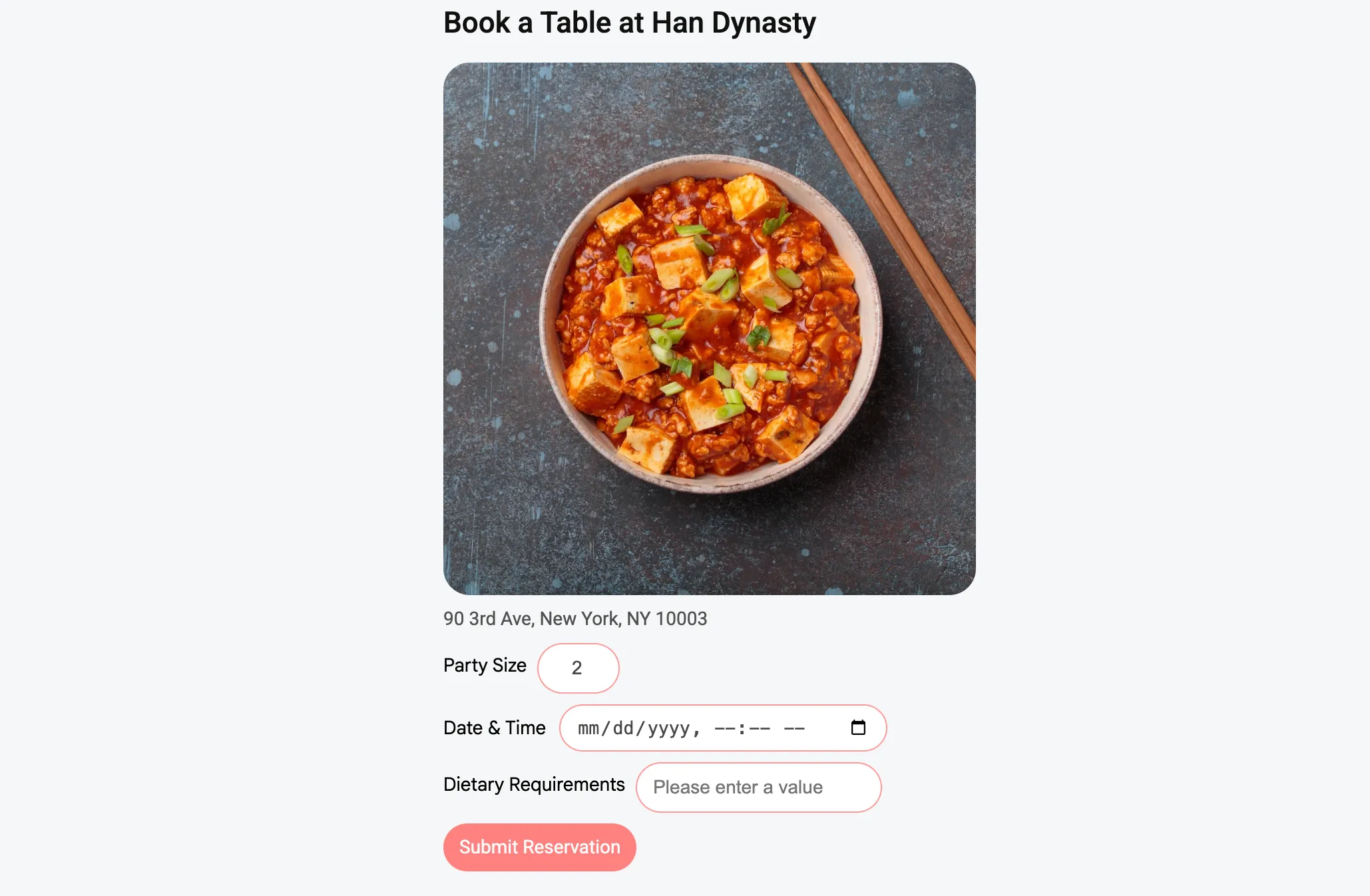
The A2UI Way (Agentic UI): Instantly renders a selectable list of flight cards right in the chat stream. Users can see airlines, times, and prices at a glance.
1. The Data Model (Schema)
First, the Agent needs to know what to generate. Unlike simple widgets, a flight search result is a List of objects.
Here is the JSON schema your agent will generate:
{
  "type": "flight-list",
  "data": {
    "trips": [
      {
        "id": "f1",
        "airline": "United",
        "departure": "08:00 AM",
        "arrival": "04:30 PM",
        "price": 350,
        "currency": "USD"
      },
      // ... more flights
    ]
  }
}
2. The Components
We’ll use a Composite Pattern: A parent container (FlightList) that manages layout, and child items (FlightTicket) for individual data.
FlightList.tsx (The Container)
This component handles the layout logic. Notice how we use standard React + Tailwind CSS.
import React from 'react';
import { FlightTicket } from './FlightTicket';

export const FlightList = ({ trips }) => {
  if (!trips?.length) return <div className="p-4">No flights found.</div>;

  return (
    <div className="flex flex-col gap-4 w-full max-w-lg">
      {trips.map(trip => (
        <FlightTicket key={trip.id} {...trip} />
      ))}
    </div>
  );
};
Pro Tip: We use
flex-col(vertical stack) because it works best inside narrow chat windows, looking great on both mobile and desktop sidebars.
FlightTicket.tsx (The Item)
This component handles the visual presentation of a single flight.
export const FlightTicket = ({ airline, departure, arrival, price }) => (
  <div className="flex justify-between items-center p-4 border border-gray-200 rounded-lg hover:bg-blue-50 hover:border-blue-200 transition-colors cursor-pointer bg-white shadow-sm">
    <div className="flex flex-col">
        <span className="font-bold text-gray-900">{airline}</span>
        <span className="text-sm text-gray-500">{departure} ➝ {arrival}</span>
    </div>
    <div className="text-xl font-bold text-blue-600">
        ${price}
    </div>
  </div>
);
3. The “Magic”: Streaming & Skeletons
One key advantage of A2UI is Streaming Rendering. LLMs generate text token-by-token. If we waited for the full JSON to complete, the user would stare at a spinner for 3-5 seconds.
With A2UI, we can render partial results instantly.
How it looks to the user:
- 0.1s: Agent starts “thinking”.
- 0.5s: A2UI detects
type: "flight-list". It immediately renders a Skeleton Loader (gray placeholder boxes). - 1.5s: The first flight object (
United) completes. The first skeleton transforms into a real ticket. - 2.5s: The second flight (
Delta) pops in.
Agent → JSON Stream: { "type": ...
Renderer → UI: <SkeletonList />  (Instant Feedback)

Agent → Stream: ... "airline": "United" ...
Renderer → UI: <FlightTicket id="1" /> (Progressive Reveal)
Next Steps
You’ve just built a complex Generative UI! This pattern (Container + List Items) is the foundation for almost any “Search & Results” agent capability:
- E-commerce: Product Search Grids
- Hotels: Room Booking Lists
- Finance: Stock Market Dashboards
Missed the basics? Review Getting Started.